UI Tutorial
Tutorial
Each widget works a little differently, but all are set up in the same basic way. Below is an example using the "Text Box" control:
-
UI can be found in two different locations, but both contain the same things. Use either the Object menu at the top of the screen, or the UI Elements section of Core Content. In this case, let's use Core Content.
-
Scroll to the bottom of the Core Content window, and click the UI Elements section within the "GAME OBJECTS" category.
On the right several different options will be displayed, and these are the pieces we're looking for!
-
First we need something to hold the UI. So select the UI Container object, and drag this into your project Hierarchy. This is an object that cannot have any transformations, and only exists to hold UI within it.
-
Next, from that UI Elements section of Core Content, click the UI Text Box, and drag this on top of the UI Container we just made. It should now be displaying on-screen in the viewport as well!

-
With the UI Text Box in the Hierarchy selected, look in the Properties window.
-
Move the Text Box into the desired location using either the white dotted bounding box around the element in the editor window, or by adjusting the numbers of the X / Y Offset in the Properties window.
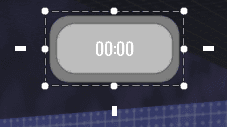
- The Text Box has several properties that can be changed via the Properties window, that all alter the display and behavior of a UI element on different screens.